Client integration guide
How to connect your cloud accounts (AWS, Azure, GCP) and Twilio to FinOps and invite your team.
FinOps reads your cloud cost and usage exports and never changes anything in your accounts. Setup takes about 15 to 30 minutes per cloud.
1. What you will do
- Sign in to the workspace from the invitation email.
- Connect a cloud under Settings → Integrations: create a read-only access in the cloud, then paste back one or a few values.
- Wait for the first sync. FinOps loads the last 12 months, then refreshes every night at 04:00 UTC (9:30 AM IST).
Whoever does this needs admin rights in the account that receives the bill: the AWS payer (management) account, the Azure subscription owner, the GCP billing account administrator, or a Twilio account owner.
2. Before you start
| Cloud | You need |
|---|---|
| AWS | Admin access to the payer (management) account; permission to create a CloudFormation stack with IAM resources. A suitable CUR 2.0 export is reused; otherwise the setup creates one. |
| Azure | Rights to create an App Registration and a client secret; Owner (or equivalent) on the subscription to grant roles; daily amortized and actual Cost Management exports to a storage account (the optional setup script creates these). |
| GCP | Billing Account Administrator; the detailed usage cost billing export enabled to a BigQuery dataset; an open billing account. |
| Twilio | Access to the main (parent) account in the Twilio Console, to create an API key or read the Auth Token. |
3. Sign in
- Open the invitation email from KubeAce FinOps and click the invite link. It is one-time, valid for 7 days, and works only for the email address it was sent to.
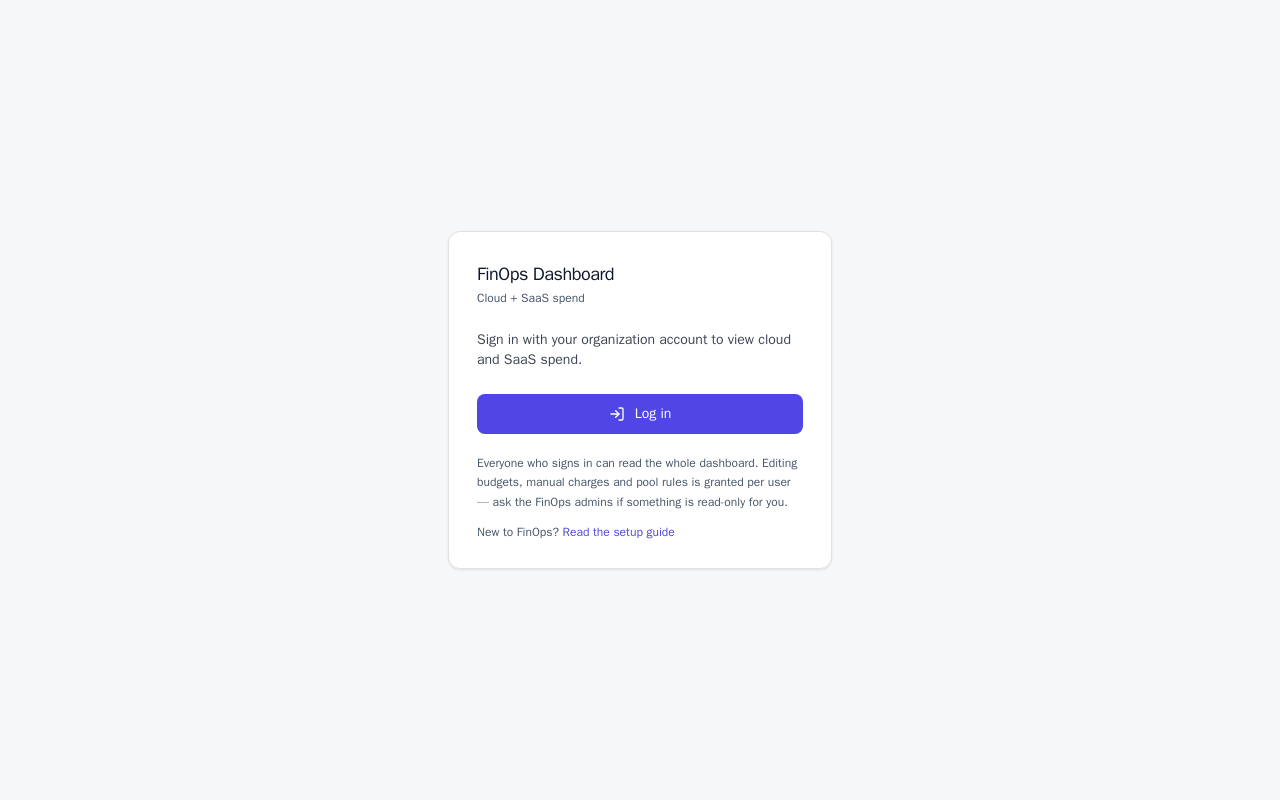
- On the sign-in page, choose Create an account with the invited email (if you already have an account, sign in). You then land in your workspace.
- Later, sign in at
https://finops.kubeace.inand choose Log in.
4. Connect AWS
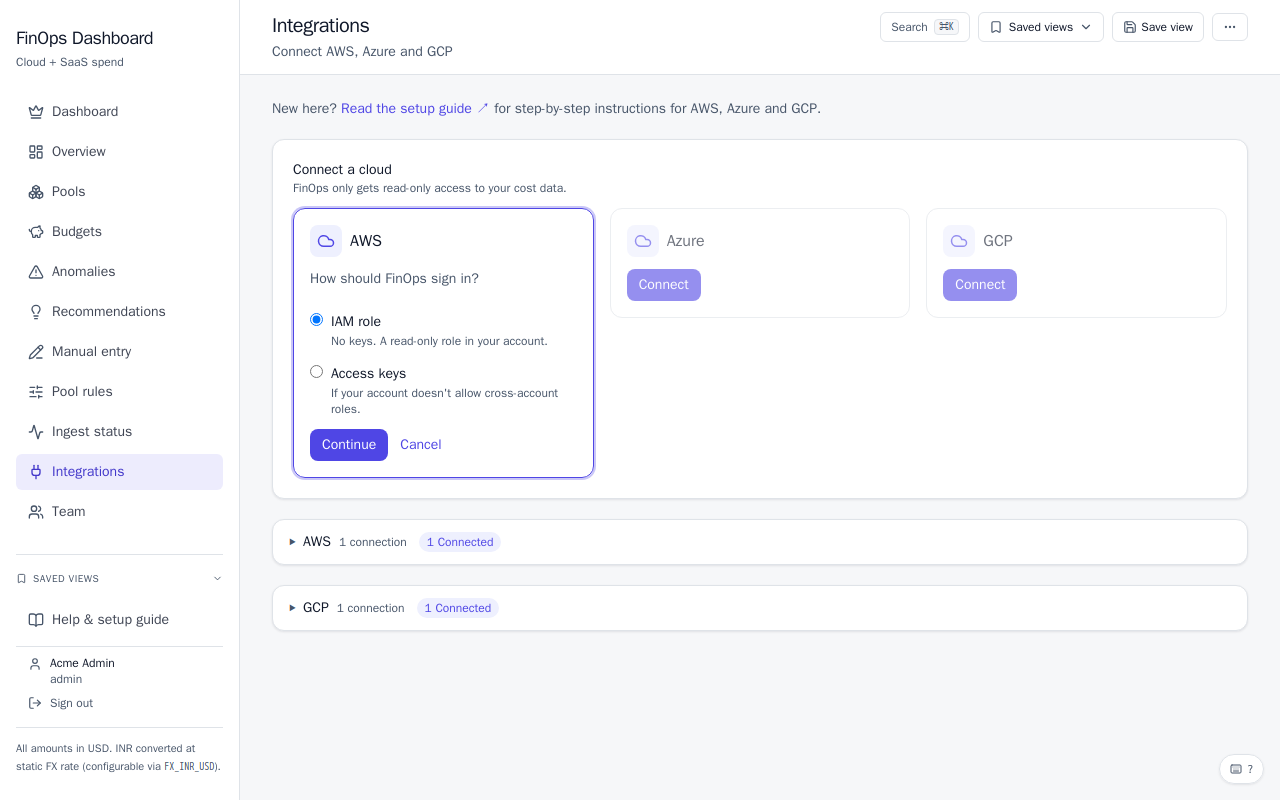
Open Settings → Integrations and click Connect on the AWS card.
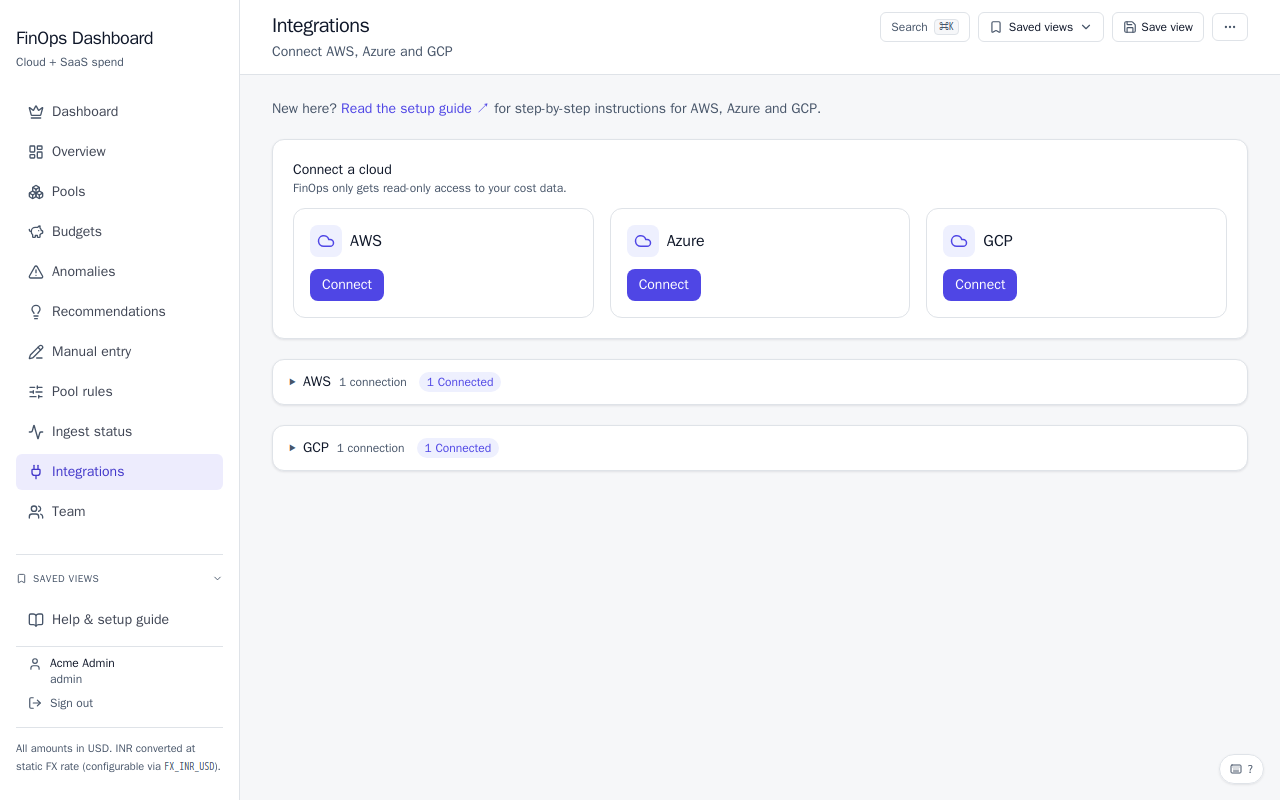
Step 1: choose how FinOps signs in
- IAM role (recommended). No keys. A read-only role in your account that only FinOps can use, protected by an External ID that is unique to your connection.
- Access keys. Only if your organization blocks cross-account roles. The key is stored encrypted and rotated automatically every 90 days.
Step 2: create the stack in the payer account
FinOps shows a Launch template in AWS link with every value pre-filled, plus the External ID. Click it, sign in to the payer account, tick the IAM acknowledgement and click Create stack. The stack is named finops-connect. It:
- reuses a suitable CUR 2.0 export (daily, resource IDs, overwrite mode), or creates the bucket
finops-cur-<account-id>and a daily Parquet export; - grants read access to only that export folder;
- creates
finops-assume-cost-role(role mode) or the IAM userfinops-cost-reader(access-keys mode).
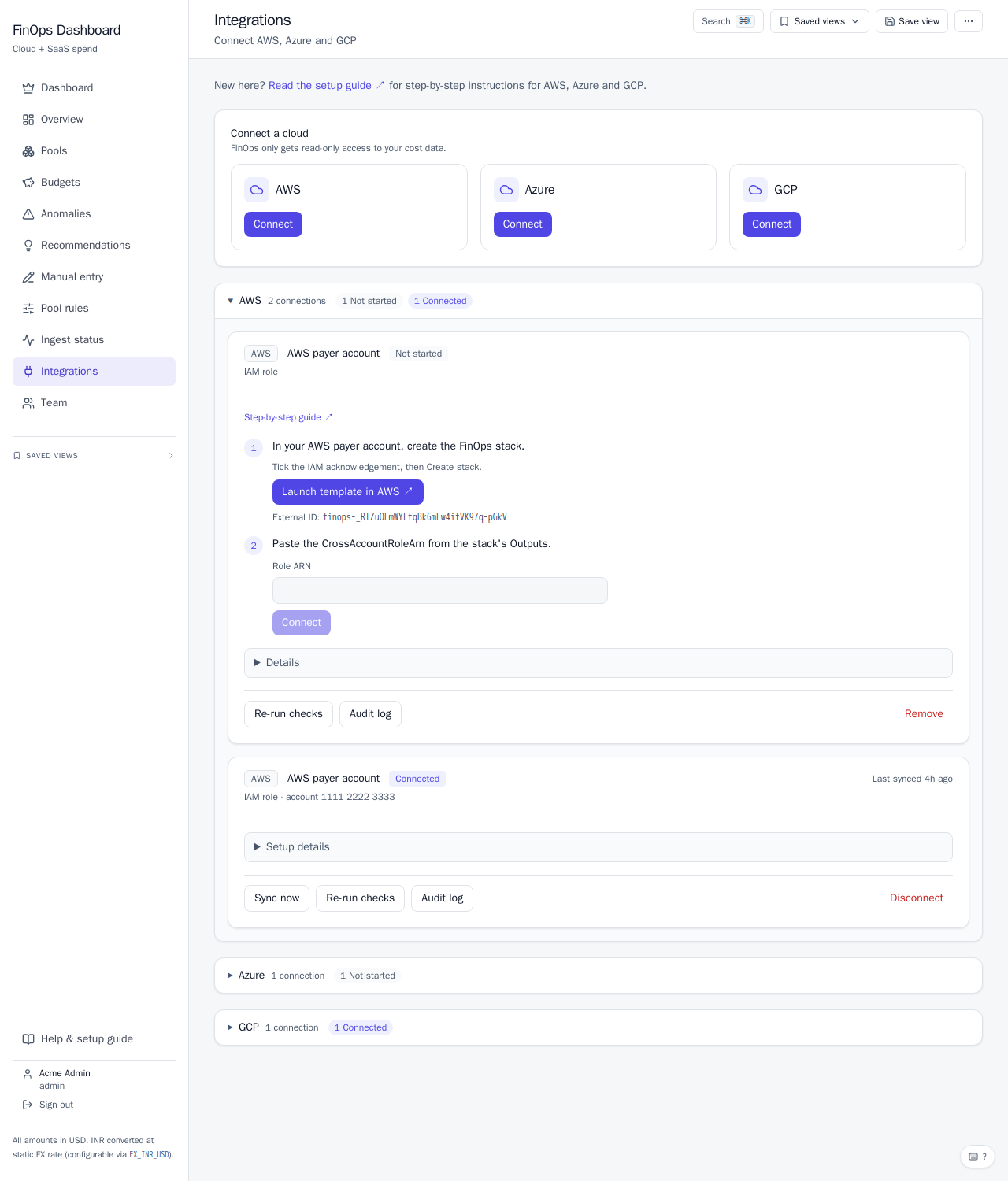
Step 3: paste the value back
Role mode: copy CrossAccountRoleArn from the stack's Outputs tab into Role ARN and click Connect. Access-keys mode: paste the access key ID and secret of finops-cost-reader. FinOps runs the Health Report (credentials → export → files); when all three pass, the card shows Connected.
A new CUR export can take up to 24 hours to deliver its first files. Until then the files check shows as waiting; that is normal.
5. Connect Azure
- Create the access in Azure. An App Registration with a client secret, and daily amortized and actual Cost Management exports to a storage account. Grant the app Cost Management Reader on the subscription and Storage Blob Data Reader on that storage account only. The optional
azure/connect.shdoes all of this in one command in Cloud Shell; FinOps shows the command on the connect screen. - Paste the details into FinOps: tenant ID, client ID, client secret, the secret's expiry date and the subscription ID. FinOps finds the exports itself through the Cost Management API, so no storage or container names are typed.
- The Health Report checks the sign-in, the exports and the files, then shows Connected.
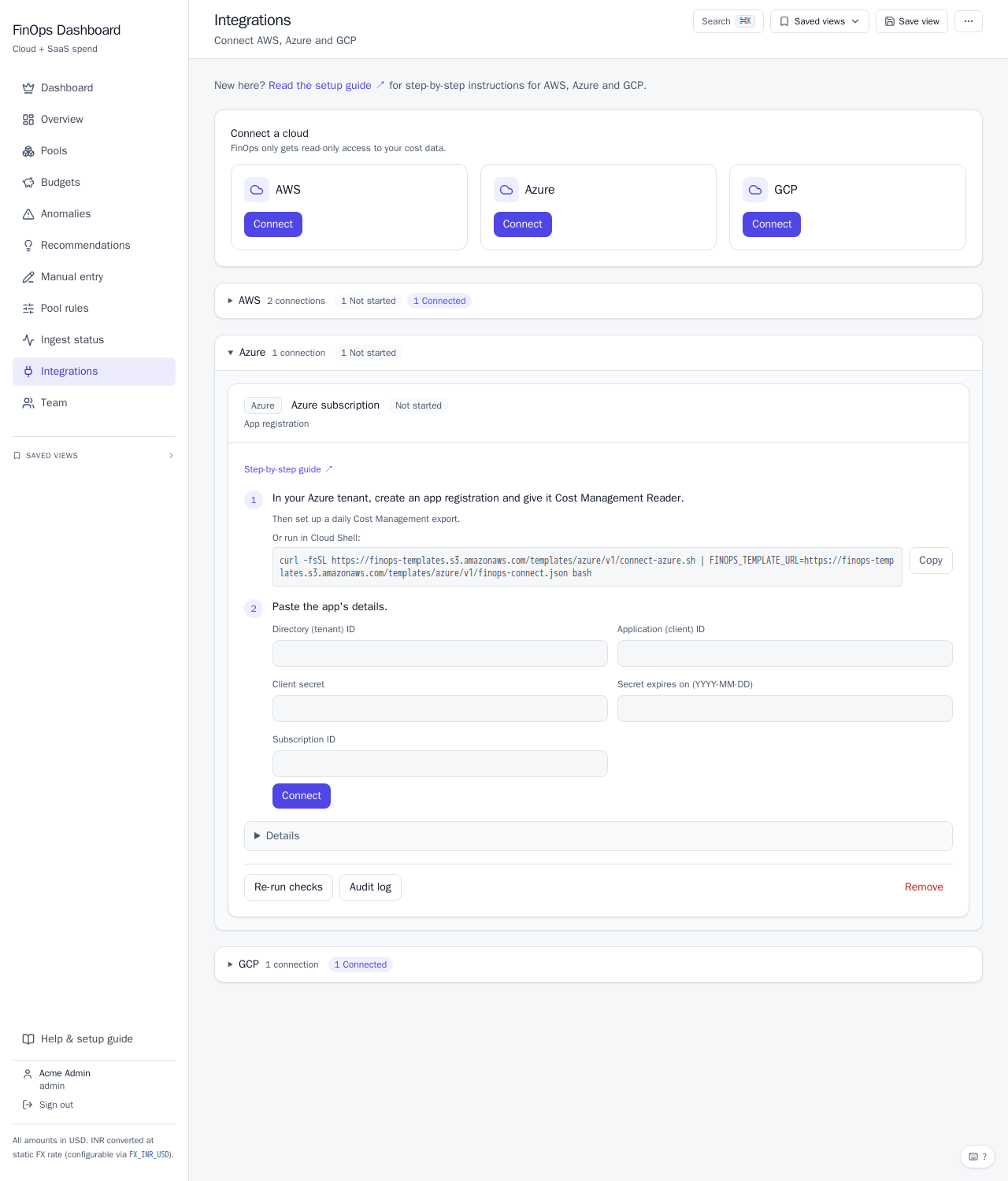
Each night FinOps signs in as the app and creates a temporary read-only link (valid for 1 hour) to the export files; no storage key is stored. The client secret is stored encrypted, and FinOps warns you 30 days before it expires.
6. Connect GCP
- FinOps creates a dedicated service account for the workspace and shows its address on the connect screen, so no other client can point FinOps at their dataset.
- Enable the detailed usage cost export in the Cloud Console to a BigQuery dataset.
- Share that dataset with the service account FinOps showed, role BigQuery Data Viewer. The optional
gcp/connect.shdoes the share in Cloud Shell. - Paste the billing account ID, project ID and dataset ID, and click Connect.
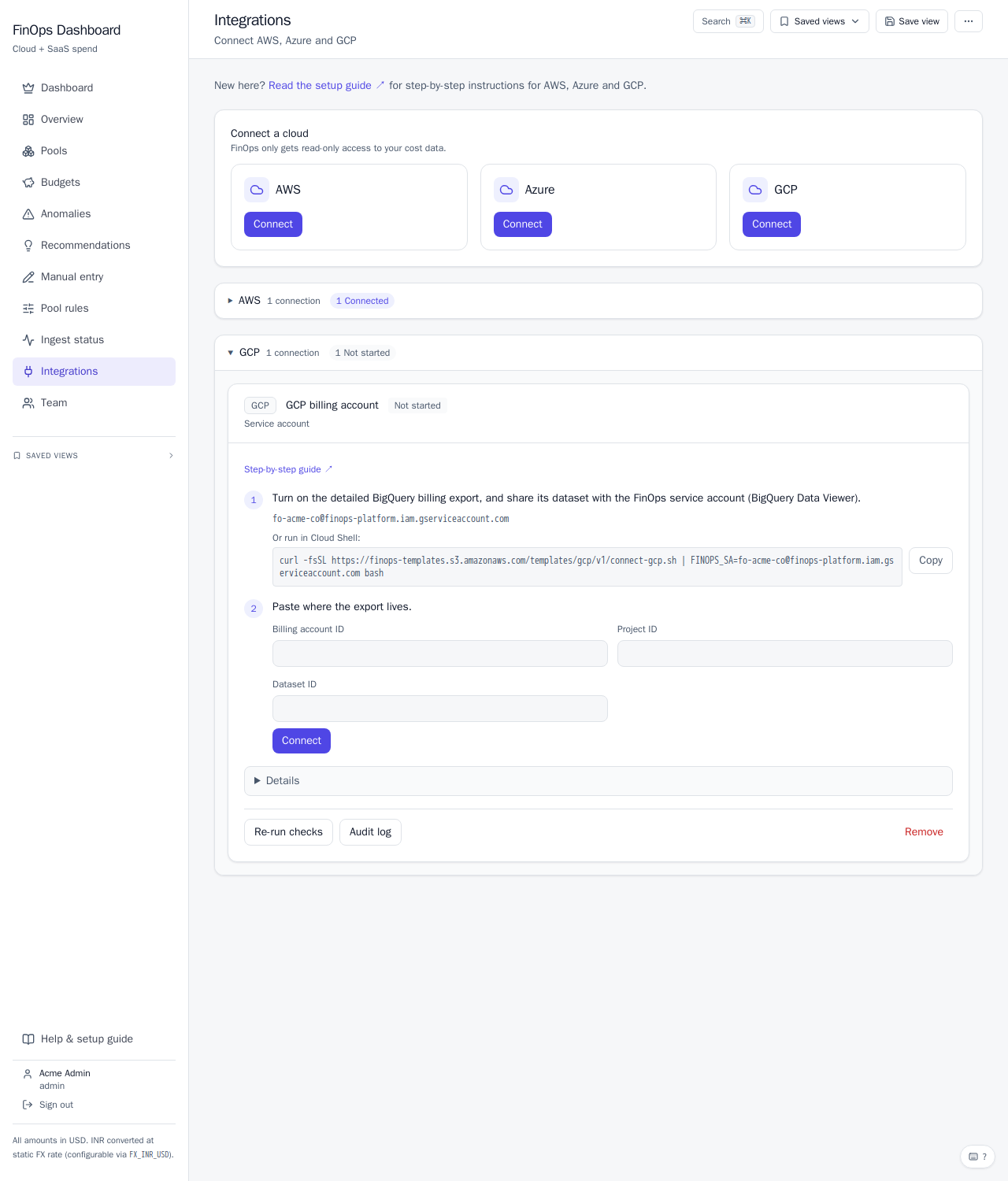
FinOps reads through short-lived impersonation: no key files, no stored credentials.
Gotchas seen on real accounts:
- The billing account must be open.
- A dataset created while the project was in the BigQuery sandbox keeps a 60-day expiry that would delete history. Clear it:
bq update --default_table_expiration 0 --default_partition_expiration 0 <project>:<dataset> - The console export must point at the dataset that was shared. If it points at a deleted dataset it shows "Enabled" but writes nothing; disable it and enable it again on the right dataset. Google creates
gcp_billing_export_resource_v1_<billing id>a few hours later.
7. Connect Twilio
Open Settings → Integrations, click Connect on the Twilio card and choose how FinOps signs in:
- API key (recommended). In the Twilio Console of your main account, go to Account → API keys & tokens → Create API key, type Standard. Copy the key's secret straight away: Twilio shows it only once. Paste the Account SID (starts with
AC), the API key SID (starts withSK) and the secret. The key can't change your account, and you can delete it at any time. FinOps shows your whole Twilio bill as one daily total, subaccounts included: Twilio does not let an API key read subaccounts separately. - Auth Token. Paste the main account's Account SID and Auth Token from the Twilio Console home page. FinOps then shows the bill split per subaccount, plus the main account's own charges. The Auth Token gives full access to your Twilio account, so choose this only if you need the split. If you change (rotate) the Auth Token later, paste the new one.
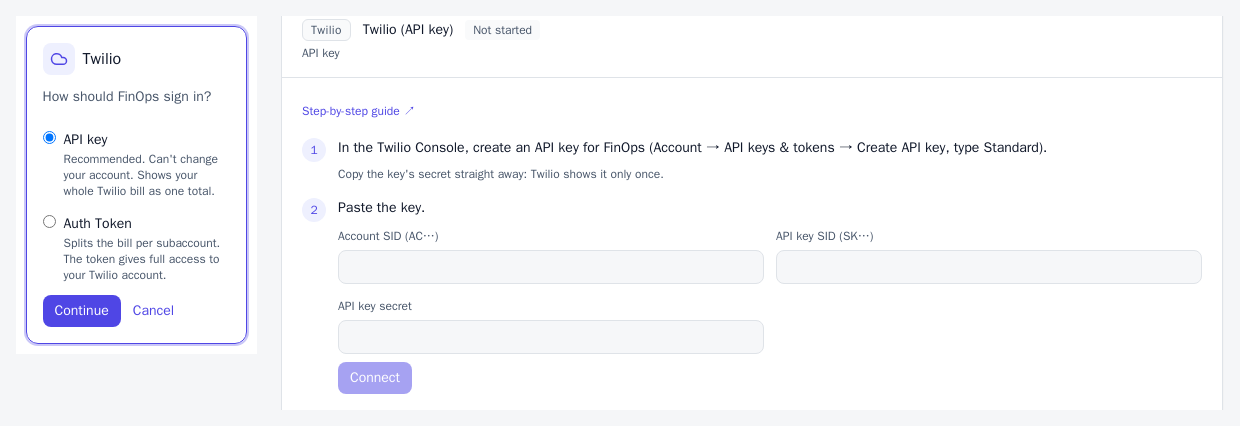
The Health Report checks the sign-in, reads your last 7 days of usage and, with an Auth Token, lists your subaccounts. FinOps reads only the daily usage totals, never messages, calls or phone numbers. The key or token is stored encrypted and never shown again.
8. After connecting
| What | Detail |
|---|---|
| First sync | Loads the last 12 months. |
| Nightly refresh | Every night at 04:00 UTC (9:30 AM IST). |
| Sync now | Admins can click Sync now on a connected card to fetch the latest files immediately (at most once every 15 minutes per connection). |
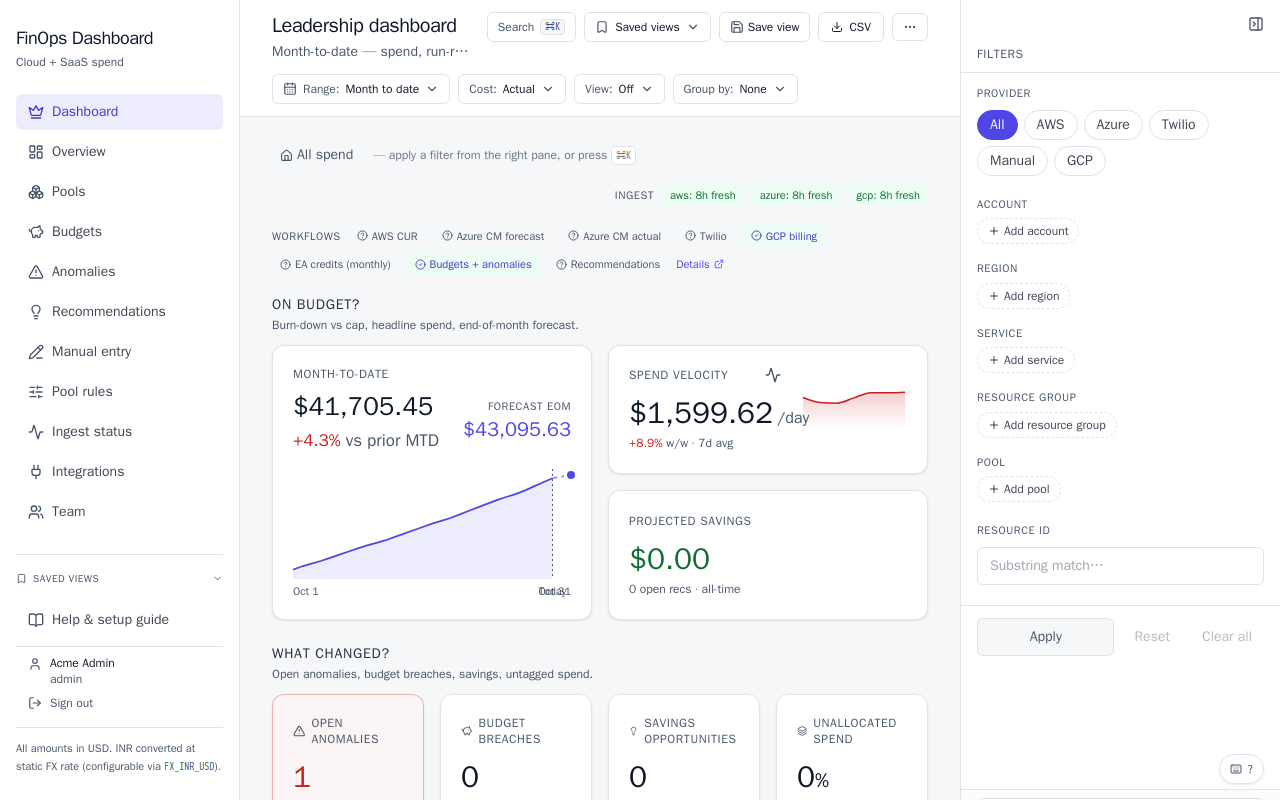
| Where to look | Ingest status shows each sync and any error. Dashboard, Pools, Budgets, Anomalies and Recommendations fill in as data arrives. |
9. Invite the team
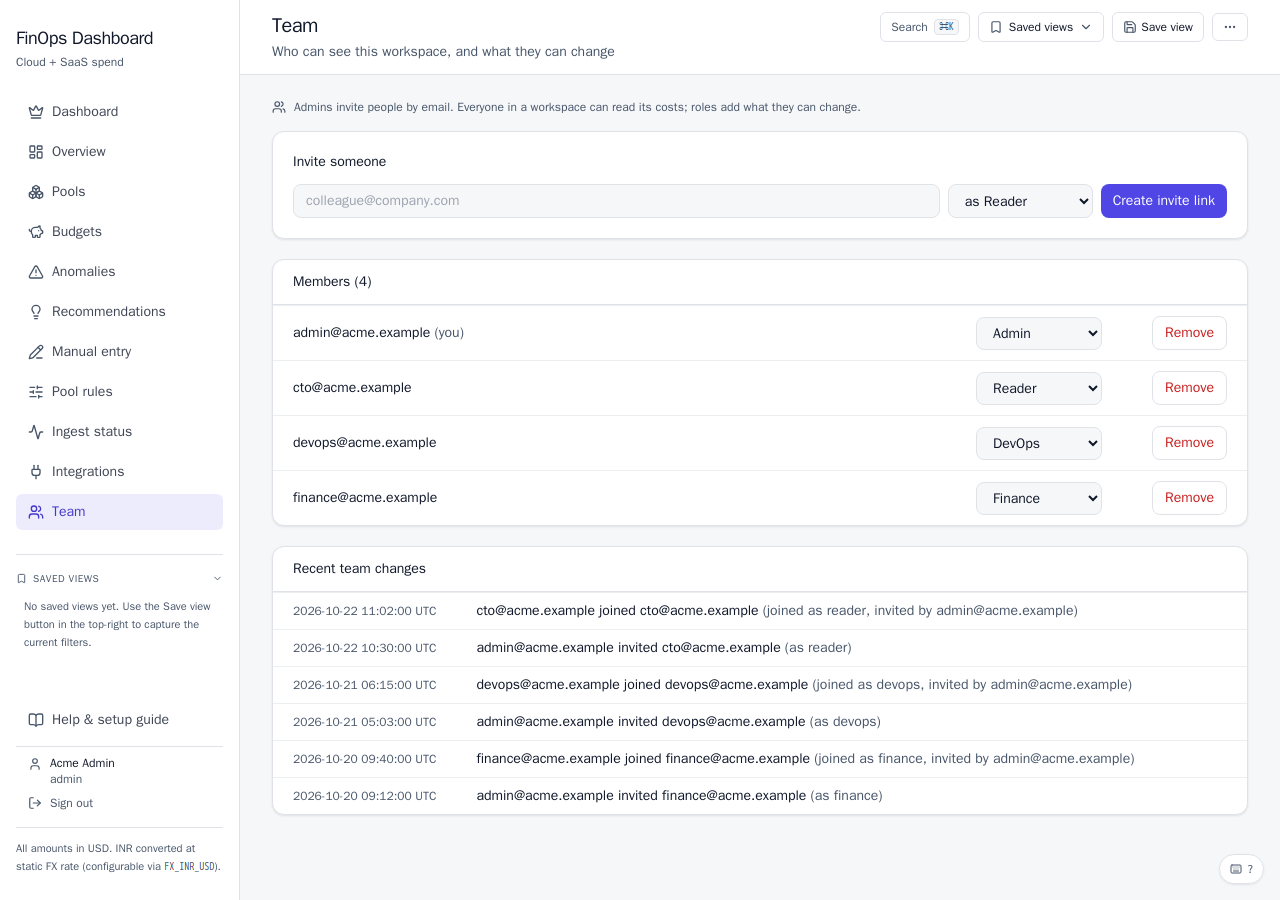
Settings → Team → Invite: enter an email and choose a role. The invitation opens in the admin's own mail app (Gmail, Outlook or default mail), pre-filled, and is sent from their mailbox, not ours.
Everyone in the workspace can see all costs. Roles add what a person can change:
| Role | Can also |
|---|---|
| Reader | Only view, and keep their own saved views |
| Finance | Manage budgets and manual charges, share saved views with everyone, acknowledge anomalies, act on recommendations |
| DevOps | Create pool rules, acknowledge anomalies, act on recommendations, re-run a sync from Ingest status |
| Eng manager | Acknowledge anomalies, act on recommendations |
| Admin | Everything above, plus connect clouds, manage the team, and edit or delete pool rules |
Admins can change a person's role or remove them at any time; every change is listed under Recent team changes.
10. Disconnect and remove
- Disconnect (connected card): FinOps stops reading and forgets any stored key. Data already imported stays.
- Remove (card that never connected): deletes it.
- To remove access completely: delete the
finops-connectstack in AWS, the App Registration in Azure, the service account's access to the dataset in GCP, or the FinOps API key in Twilio (change the Auth Token if you gave FinOps that).
11. Troubleshooting
| Symptom | Likely cause and fix |
|---|---|
| Invite link says expired or not valid | Links last 7 days and work once, only for the invited email. Ask your KubeAce contact for a new one. |
| "No access to this workspace" | Signed in with a different email than the one invited, or not a member of that workspace. |
| AWS: credentials check fails | Wrong Role ARN or the stack is not in CREATE_COMPLETE. |
| AWS: files check waiting | The first CUR delivery takes up to 24 hours. |
| Azure: sign-in fails | Expired or mistyped client secret; check the expiry date and tenant ID. |
| Azure: no exports found | The exports are not created yet, or the app lacks Storage Blob Data Reader on that account. |
| GCP: no table found | The export points at a different dataset than the one shared, or Google has not written the table yet (a few hours). |
| Twilio: sign-in fails | The key was deleted or mistyped, the key belongs to another account, or the Auth Token was changed. Paste the values again. |
| Twilio: usage can't be read | A restricted API key without the Usage Records permission. Add it, or use a Standard key. |
| Data looks old | Open Ingest status; use Sync now or check the card's Health Report. |
12. Security and your data
| Question | Answer |
|---|---|
| What FinOps reads | Only your cost and usage exports: services, accounts, regions, resource IDs, tags and costs. It has no access to your workloads or their data. |
| Can FinOps change anything? | No. Every access FinOps uses is read-only. (A Twilio Auth Token could change your account, if you choose it; FinOps only reads usage with it. The API key option can't.) |
| Credentials | AWS role and GCP access use no stored keys. Azure client secrets, Twilio API keys or Auth Tokens, and AWS access keys (if you choose them) are stored encrypted and never shown again after you save them. |
| Where data is stored | In the FinOps database on AWS, US East (N. Virginia), encrypted in transit and at rest. |
| Who can see it | Only members of your workspace. Each workspace's data is separated in the database itself. The KubeAce owner console shows workspace names, members and connection health, never cost figures. |
| How long it is kept | Up to 36 months; older data is removed automatically. |
| Leaving | Disconnect your clouds (section 10). To have your workspace and its data deleted, email info@kubeace.com. |
13. Costs on your side
FinOps itself reads your data at no cost to you, but the exports live in your accounts:
- AWS: standard S3 storage for the cost export files.
- Azure: standard storage for the export files in your storage account.
- GCP: BigQuery storage for the billing export. The queries FinOps runs are billed to FinOps, not to your project.
- Twilio: nothing. Reading usage is free.
These are usually small, but they appear on your own cloud bill.
14. Getting help
Email info@kubeace.com with your workspace name, what you were doing, and a screenshot of the card's Health Report if it is about a connection. The setup guide is always at https://finops.kubeace.in/docs, and in the app under Help & setup guide.